
The Knowledge tab is where you decide what your AI agent knows about your business. Your text chat, your voice agent and the Blog Agent all answer and write from this one shared knowledge, so anything you change here reaches all three.
This guide walks through the tab from top to bottom. The short video below shows the main steps; the sections after it explain every part of the screen.
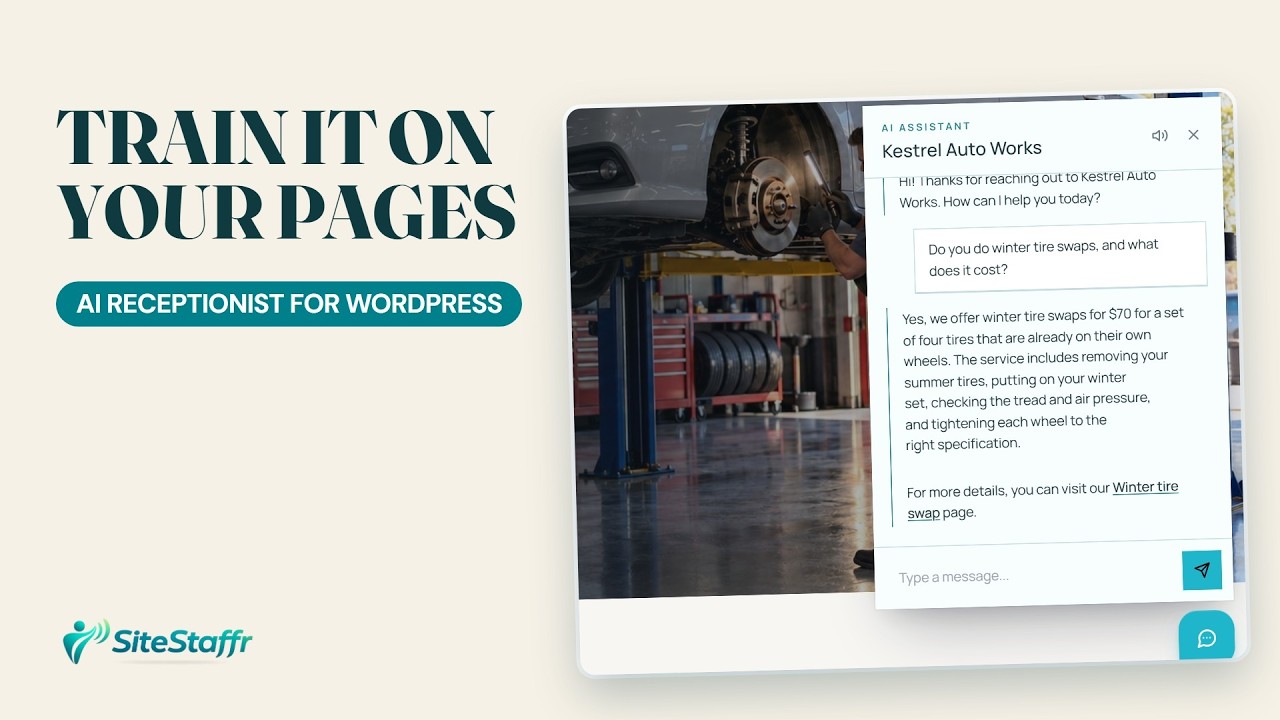 Play the video: Train Your AI Receptionist on Your WordPress Pages
Where to find it
In your WordPress dashboard, open SiteStaffr, then My AI Agent. Three sections sit across the top: Knowledge, Text & Voice Agent and Blog Agent. Knowledge is the first one and opens by default.
The top of the tab is a panel named What your agent knows. It lists the four sources your agent answers from. All four are available in every conversation. The next four sections of this guide cover them in the same order.
 Open the full size screenshot in a new tab
Agent Summary
The Agent Summary is a short description of your business that your agent keeps in mind at all times. It is how the agent knows who you are before a visitor asks anything specific.
The panel shows Set with the opening words of your summary, or Not set if there is none yet. The button beside it, Edit summary or Write summary, takes you to SiteStaffr, Settings, where the summary lives under Business Information.
Keep it short: what you do, the main services by name, and anything the agent should always know, such as a current promotion. Detailed services, prices and policies belong in your synced pages, which the agent searches when a visitor asks about them.
Your website content
This is the content your agent has read from your own website. The panel shows how many pages are synced and how many sections they were split into, for example 12 pages, 140 sections, or Nothing synced before your first sync.
SiteStaffr splits each page into short sections so it can find the exact passage that answers a question. When a visitor asks something specific, the agent searches these sections in full. This is where the details live: services, prices, policies.
Without synced pages, the agent can only answer from the Agent Summary. The Manage pages button jumps to the page list further down the tab, covered in Choosing pages to sync.
Where every page lives (the page directory)
The page directory is a one line entry for every published page on your site. It lets your agent send a visitor straight to the right page with a working link, even a page it has not read in full, like a photo gallery or a contact form.
SiteStaffr builds the directory on its own. It fills in after you install or update the plugin, and it keeps itself current as you publish, edit or unpublish pages. Pages a visitor should never be sent to are left out: password protected pages, and pages whose title or address names a dead end, such as thank you, confirmation, order received, cart or checkout.
The status beside the title shows how many pages it holds, or Building… with its progress while it works. Build page directory checks every published page again and refreshes the whole list. You rarely need it, since publishing a page already adds it.
Facts you add by hand
Some things your agent should know are not on your website at all: holiday hours, a new promotion, a policy you never published. Add them here.
Click Add knowledge in the panel, or Add Knowledge above the page list. A short form opens with two fields: a Title, such as Holiday Hours, and the Knowledge itself, written the way you would tell a new employee. Click Save to add it.
Your entries appear in a Manual Knowledge group at the bottom of the page list, each with a Delete link. The panel shows how many entries you have, or Optional if you have none.
How your agent answers a question
Under the panel, How your agent answers a question opens a short explanation of what happens when a visitor asks something:
- It reads your Agent Summary, so it always knows who you are.
- It searches your synced pages and the facts you added by hand for the specific answer.
- If neither has it, it says so and offers to take a message. It does not guess.
Other settings shape how it talks. Your greeting and custom instructions are on the Text & Voice Agent section of My AI Agent, and your business hours are in Settings.
Knowledge Mode
Knowledge Mode sets how your agent uses your synced pages during a conversation. There are two options:
- Search Mode is the default. Your agent searches all your synced pages to answer a question, whichever page the visitor is on.
- Page Expert Mode makes your agent answer from the page the visitor is on, and point them to other pages for other topics.
The change applies as soon as you pick an option. The word beside the heading confirms it has been stored.
 Open the full size screenshot in a new tab
The numbers: sections, pages, last sync
Three figures sit above the page list:
- Sections Indexed is the number of sections your agent can search, across your synced pages and the facts you added by hand.
- Pages Synced shows how many items in the list your agent has read, for example 12 of 38, so you can see how much of your site it has not read yet. Pages marked Changed since sync count as read.
- Last Sync is when you last synced anything, or Never.
Once visitors start asking questions, a Most-used knowledge list appears beside them. It shows the sections your agent reaches for most, each with a count of hits. A high count means visitors keep asking about that topic.
Choosing pages to sync
The bottom of the tab lists everything published on your site, grouped by type: Pages first, then Posts, then any other content types your site has. Click a group to open it. The checkbox on a group heading selects everything in that group.
 Open the full size screenshot in a new tab
- 1Re-sync changed pages
- 2Sync Knowledge
- 3Filters
- 4Group checkbox
- 5Changed since sync
Each item shows a colored dot for its status, its title and the date it was last changed:
- Synced means your agent has read the current version. A View sections link shows how the page was split, along with how often each section has been used.
- Changed since sync means the page was edited after its last sync. Your agent is still answering from the older version until you sync it again.
- Not synced means your agent has not read this page.
To sync, tick the pages you want and click Sync Knowledge. The button shows how many items are selected. A progress bar runs while SiteStaffr reads each page, and when it finishes, the statuses and numbers update.
To take pages back out, tick pages marked Synced and click Unsync Selected. (A page marked Changed since sync is skipped; sync it first, then unsync it.) SiteStaffr asks you to confirm, then removes what your agent learned from those pages. You can sync them again at any time.
Two filters above the list help on a large site: type part of a title to narrow the list, or pick a status to see only Synced, Changed since sync or Not synced items.
On a brand new install with nothing synced yet, a box at the top reads Teach your AI about your business. Its Choose pages to sync button opens the first group so you can start right away.
Re-sync changed pages
When you edit a page that is already synced, SiteStaffr notices. A notice appears above the list saying how many synced pages have changed since their last sync, with a Re-sync changed pages button.
That button selects exactly those pages and syncs them in one step, so your agent answers from the latest version. Pages that have not changed are left alone.
Update automatically (in Settings)
You can also keep your agent current without opening the Knowledge tab. Go to SiteStaffr, Settings, and find the Agent Summary box under Business Information. It has two controls that do the same job:
- Update now reads your new and changed pages, then rewrites your Agent Summary from what it read. Because this replaces your summary, SiteStaffr asks you to confirm first. Your current wording is not kept.
- Update automatically runs that same update for you a few minutes after you publish or edit a page. Several edits in a row lead to one update, not one per edit.
Update automatically is off by default. While it is off, your summary stays exactly as you wrote it, and pages are only read when you sync them on the Knowledge tab or click Update now. These two controls update your Agent Summary. The Blog Agent’s Detailed Profile has its own Update automatically switch on the Blog Agent screen; when both switches are on, one run after an edit updates both.